
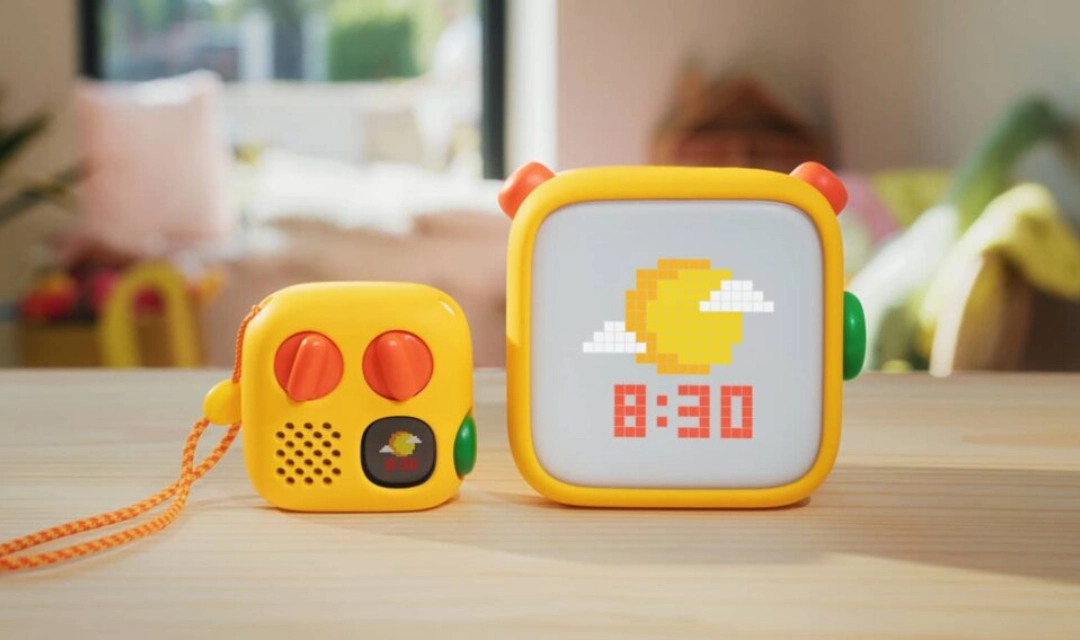
Start with the thing that will save you ten minutes of searching: Yoto's help centre has no article called parental controls. The controls exist, but they are scattered across the Settings tree and a dozen separate feature articles. The phrase Parental controls via Yoto App appears exactly once, as a single line in the 4th Gen technical specification list.
So here is the whole thing in one place: every control Yoto offers, where each one lives, what the volume limiter actually governs, and the three things Yoto does not do at all.
Where everything lives
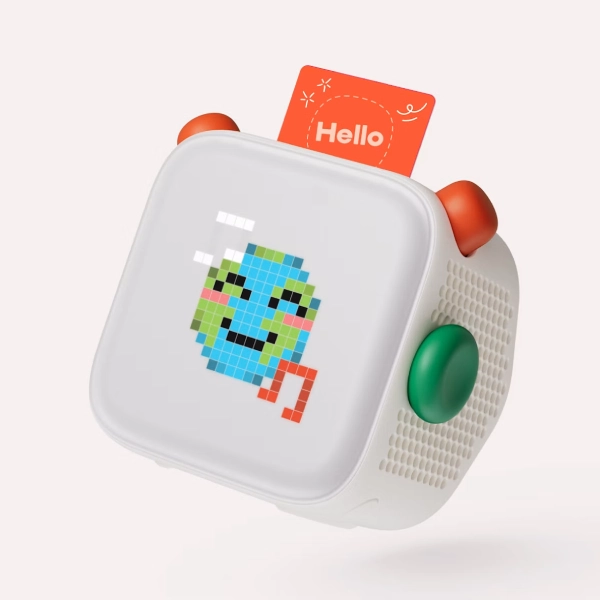
Almost all of it sits in one place: Yoto App, Settings tab, tap the chevron next to the player. The tree has three groups.
Status
- Player name, which you can rename
- Battery level
- Manage WiFi, to disconnect or add a network
- Audio Download Status, showing which cards are downloaded and which still need to stream
Alarms
Up to 10 alarms per player.
Day and Night Mode, where most of the parental controls live
| Setting | What it does |
| Morning | Sets the start time for day mode. The clock face changes from moon to sun |
| Bedtime | Sets the start time for night mode. The clock changes from sun to moon |
| Morning Light / Nightlight Colour | The okay-to-wake control. Different colours for night and day so your child knows when it is time to get up, even if the player is face down. Yoto Player only, the Mini has no night light |
| Auto Display Brightness | Adjusts screen brightness to ambient light. V3 only |
| Display Brightness | Default screen brightness per mode when auto is off or unavailable |
| Volume Limit | Separate maximum for day and night |
| Right Button Shortcuts | What the right button plays. Default is Yoto Daily and Yoto Radio on first and second press during the day, Yoto Sleep Radio on first press at night. Editable to include French Language items and Timers |
Advanced
| Setting | What it does |
| Battery saver | How quickly the display dims when idle and off the dock |
| Auto Power-Off | How quickly the player switches off when idle and off charge |
| Bluetooth pairing | A toggle. Worth reading the next paragraph before you ignore it |
| Headphone volume limit | A separate limiter for headphone output |
| 24-hour clock | 12 or 24 hour front display |
| Automatic time zone | Includes daylight saving updates |
| Version info | Yoto OS version, app version, registration code, MAC address |
| Yoto Beta labs | Early access programme |
| Unpair this player | Removes it from the Family Account |
The Bluetooth toggle is a genuine child lock and almost nobody uses it that way. Yoto's own wording: toggling this one does not turn on Bluetooth mode, it unlocks the feature, so you can subsequently enter Bluetooth mode by pressing the left-hand orange button for 3 seconds. Leave it off and a child holding that button down does nothing.
The sleep timer, which is not in Settings
Tap the now-playing bar to open the Maxi Player, then tap the moon and stars icon and set a time. Yoto notes that if you change cards or play something else while it runs, the timer keeps running until it runs out or you set it to off. Turn it off by tapping the icon again and selecting off.
The volume limiter, and what it actually governs
Set it in the Yoto app, Settings tab, open the player's settings. The player must be switched on and connected to the internet for a change to go through.
- There is a Day Volume Limit and a Night Volume Limit, set separately
- The scale runs 0 to 16. Yoto's own words: the maximum volume is 16, and the lowest volume is 0, which will result in no sound at all
- The Headphone Volume Limiter is a separate control, further down the same page
What it covers, and the one thing it does not
Yoto's scope statement is the detail worth knowing, and it is published verbatim in the app settings article: this volume limit applies to the Speaker and Wired Headphone outputs. The Yoto Wireless Headphones feature their own kid-safe volume limiting.
So the app limiter governs the speaker and wired headphones. Yoto's own wireless headphones have their own separate limiting built in, which Yoto describes as always on.
On Bluetooth generally, there is one more piece of evidence. Firmware v2.21.4, from 19 February 2025, added: volume limit now applies when changing volume from headphones. So from that version onward the limit does govern volume changes made at the headphones.
It governs alarms too
A detail nobody writes about. From Yoto's alarm documentation: the alarm volume will not exceed your day or night settings. For example, if you set the alarm volume to 16, but your maximum day volume is 10, the alarm will play at a volume of 10.
Which means a sensible night limit also prevents a 7am alarm from going off at full blast. Worth setting before you set an alarm, not after.
On decibels, and being honest about it
Yoto publishes no decibel figure for the volume limiter. The 0 to 16 scale is not mapped to dB anywhere in Yoto's material. The only dB number we found in any Yoto publication is a signal-to-noise ratio spec on its wireless headphones, which is an audio quality measure and has nothing to do with loudness. Do not let anyone conflate the two.
Yoto does make hearing-safety statements and cites the World Health Organization. From its 4th Gen product page:
- 4th Gen Yoto Player and Mini are defaulted to ensure safe listening volumes when used with wired or Bluetooth headphones
- Yoto headphones, sold separately, also have volume limits to ensure child-safe volume limits are always on
- In line with the WHO advice on safe listening, Yoto recommends checking the volume is appropriate for the environment
- Yoto's stated rule of thumb: aim for 60% of a device's maximum volume level for everyday usage
- Keep high volume listening sessions to short periods
- Yoto Player or Mini should be kept a safe distance from children's ears
We are reporting what Yoto says, not giving health advice. We also looked for any audiology body or standards organisation that has published specifically on children's audio players like Yoto or Toniebox, and found none. If an article tells you there is an official safe setting for a Yoto, ask them where it comes from.
One more age fact from Yoto's own documentation: Yoto Player and Yoto Mini are certified as suitable for children aged 3 and over, content spans 0 to 12+, and children under 3 should only use them under adult supervision, with charging kept out of reach.
Alarms, in detail
Needs Yoto app v2.46 or later and player OS 2.10.7 or later. Go to Settings, your player, Alarms, Set an alarm, Add an alarm.
- Choose which days, defaulting to all
- Seven alarm sounds, with a 3-second preview on your phone and a 10-second preview on the player
- Maximum 10 alarms per player, each with its own on/off toggle
- Delete from the bottom of that alarm's screen
- The player must be switched on at the time for the alarm to play
- Stop it by pressing any button on the player
Content controls: what exists, and what does not
Being direct about this, because it is the biggest gap and most reviews skate past it. Yoto has no content filter, no explicit-content block, no age gate and no hide-content toggle. We went through the complete settings tree and the full help-centre article index, roughly a hundred articles, and nothing of the kind exists.
What you get instead is curation rather than restriction, and it is actually reasonably effective if you understand how it works.
1. The library is the gate
Streaming content only appears on the player if a parent has added it. Yoto's own troubleshooting line: if you cannot see content you would expect to see, such as sleep sounds, podcast or radio, first go to the Discover tab on the app and add to library.
So radio and podcasts are opt-in per household. If you never add them, they are not there. That is the main content control.
2. The buttons are parent-chosen
On 2nd and 3rd Gen players, the two Right Button Shortcuts are chosen by you from a pre-set list. On 4th Gen, the Green Button playlists are entirely parent-curated. Yoto's wording: the Green Button gives kids quick access to audio chosen by a grown-up in the Yoto App.
3. Going offline kills streaming but keeps cards
Yoto states that radio stations and podcasts stream continuously so they will not play offline, while any card that has finished downloading plays straight from built-in storage, completely offline.
So disconnecting WiFi leaves physical cards working and disables streaming. There is no disable streaming switch, but that is the practical equivalent.
4. The one thing to actually worry about: shared Make Your Own content
Yoto is explicit that shared user content is not moderated in advance. Its words: Yoto doesn't generally moderate shared content, and we do not listen to or approve content before it is shared. It is the responsibility of the individual to listen to the content in full to decide if it's suitable.
Yoto will remove content that is reported or algorithmically flagged for things including offensive language, racist, obscene, defamatory, sexual or violent material, or content unsuitable for children under 12. But that is reactive, after the fact.
Also worth knowing: sharing Make Your Own content exposes the creator's email address to recipients. If you are sharing with a wider group than close family, that is a real consideration.
Yoto Daily and Yoto Radio
- Yoto Daily is a new piece of exclusive audio delivered to the player every day, hosted by Jake. Press the right-hand button with no card inserted
- Yoto Radio is Yoto's in-house kids radio station, free to listen to. Press the right-hand button twice
- Yoto Sleep Radio is the night-mode first-press default
- Both are free. No subscription is involved
Can you disable them? Yes, by reassignment rather than a kill switch. On 2nd and 3rd Gen, the Right Button Shortcuts can be edited. On 4th Gen, Yoto Daily and Yoto Radio are only the defaults of the daytime Green Button playlist and can be removed or reordered. They also simply will not play offline, being streams.
If you want any kind of listening log, the closest thing that exists is the last 20 tracks played on Yoto Radio, viewable in Yoto Space on the web. It is station-wide, not per child.
Three things Yoto does not offer
Worth knowing before you buy, especially if you are comparing against a tablet with screen-time controls.
1. No daily listening cap. There is no screen-time equivalent, no usage limit, no way to say two hours a day and no more
2. No usage reporting. No parent-facing record of what was played or for how long. The Yoto Radio last-20-tracks list is station-wide, not your child's history
3. No content filtering of any kind. No age gate, no explicit block, no hide function
The only time-based controls are indirect: the sleep timer stops playback after a set period, Auto Power-Off switches the player off when idle, Battery saver dims the display, and Day and Night mode times change what plays and how loud. None of them cap how long a child listens.
There is also no named child lock or button lock. The Bluetooth pairing toggle is the closest thing, and it only locks Bluetooth.
Multiple children and multiple players
Yoto uses Family Accounts, created automatically when you set up a player and pair your phone. An account can be one member and one player, or several of both. Members can control any player in the account and manage its settings, including sleep and wake times, nightlight colour and maximum volume.
The limitation worth flagging: there are no child profiles. Settings attach to hardware, not to children, and the content library is shared household-wide. Two children sharing one player cannot have different volume limits or bedtimes. Two children with their own players can.
On library sync across players, Yoto's own explanation: all the cards in your library download to each of your players. If your library fits within a player's storage, everything downloads. If your library is bigger, the least-played cards make room for the most popular ones, worked out per player.
Do settings need the player online?
Yes, for player settings. Both the volume limiter and the alarm articles carry the same precondition: make sure your player is switched on and connected to the internet. For remote playback from the app, both your phone and the player need to be online.
What still works offline: any fully downloaded card plays completely offline. The player needs the internet only when you first set it up and the first time you play each card.
What Yoto does not say is what happens if you change a setting while the player is offline, whether it queues and applies on reconnect or simply fails. The requirement is stated, the failure mode is not.
What changed on the 4th Gen
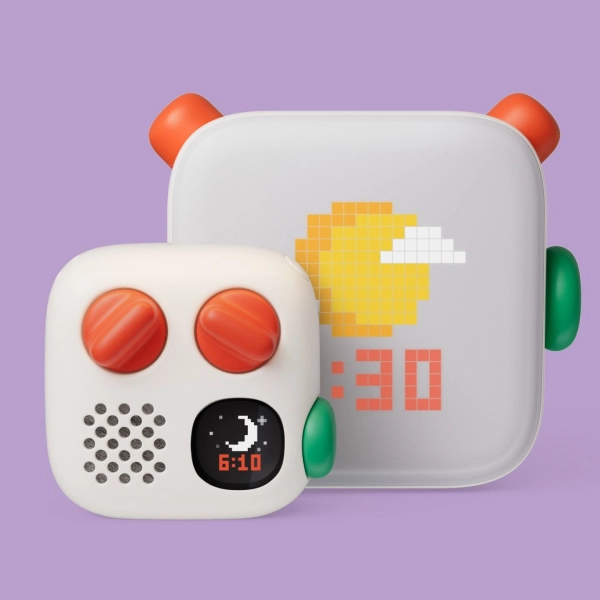
The 4th Gen Player and Mini shipped in late 2026, and the main parental control change is genuinely significant.
The Green Button
- New on 4th Gen Player and Mini only. Not on 3rd Gen, 2nd Gen or earlier Minis
- Two parent-curated playlists, one for day and one for night, up to 20 titles each
- Allowed content: stories and music, podcasts and radio stations, soundscapes and sleep sounds, timers, and your own recordings
- Defaults are Yoto Daily and Yoto Radio for daytime, Yoto Sleep Radio and Yoto Dreams at night. All editable
- Set it at Settings, your 4th Gen player, then from Day mode or Night mode, tap Green Button playlist
- Child controls: twist to browse, press to play, press again to pause, press and hold to eject back to the clock. Browsing never interrupts what is playing
It is governed by your existing Day and Night settings. Yoto's words: your player switches between them automatically, based on the morning and bedtime hours you set in the Yoto App, the same Day and Night settings that control things like the okay-to-wake night-light colour and the night-time volume limit.
Put simply, 4th Gen goes from 2 pre-set button options to 40 freely chosen titles. That is a real expansion of what a parent can curate, and it is the strongest parental-control argument for the new generation.
Other 4th Gen changes
- Toothbrush timers, and a full-panel night light on the Player only
- Up to 16 hours battery life
- The Mini 4th Gen is IP67 water and dust resistant
- Faster downloads, faster interface, better WiFi and Bluetooth
One current caveat: interactive Yoto Cards are not yet fully compatible with 4th Gen Players and Minis. Yoto describes this as temporary and says interactive card compatibility is coming soon, but it is live right now.
A sensible setup, in order
1. Set your Morning and Bedtime times first, because almost everything else keys off them
2. Set Day and Night Volume Limits. Yoto's own guidance points at around 60% of maximum for everyday use, which on a 0 to 16 scale is roughly 9 or 10. Set the night limit lower
3. Set the Nightlight Colour differently for day and night, if you have a Player rather than a Mini. That is the okay-to-wake signal
4. Turn the Bluetooth pairing toggle off unless you actively use Bluetooth headphones. It is the only real child lock available
5. Set Auto Power-Off so the player does not sit awake all night
6. Curate the Right Button Shortcuts, or the Green Button playlists on 4th Gen, so the easy-access content is content you chose
7. Only add streaming content to your library that you actually want available, because adding it is what makes it appear
8. If you want alarms, set the volume limits first, since the alarm will never exceed them
FAQ
How do I set a volume limit on a Yoto?
Yoto app, Settings tab, open the player's settings with the player switched on and online. Set Day Volume Limit and Night Volume Limit separately. The scale is 0 to 16, where 0 means no sound at all.
Does the volume limit apply to headphones?
To wired headphones, yes. Yoto states the limit applies to the speaker and wired headphone outputs. There is also a separate Headphone Volume Limiter further down the same settings page. Yoto's own wireless headphones have their own built-in limiting that Yoto describes as always on.
What decibel level is the Yoto volume limiter?
Yoto does not publish one. The 0 to 16 scale is not mapped to decibels anywhere in its material. Yoto cites WHO safe listening advice and suggests aiming for around 60% of maximum for everyday use, but gives no dB figure.
Can I block content on a Yoto?
Not directly. There is no content filter, age gate or hide function. What you get is curation: streaming content only appears if you add it to your library, button shortcuts and Green Button playlists are parent-chosen, and taking the player offline disables streaming while leaving downloaded cards working.
Can I limit how long my child listens?
No. There is no daily listening cap or screen-time equivalent. The sleep timer stops a single session, and Auto Power-Off switches the player off when idle, but neither caps total daily use.
Can different children have different settings?
Only if they have different players. Settings attach to the hardware, not to a child profile, and the content library is shared across the household. Two children sharing one player share its settings.
Is there a child lock on a Yoto?
Not as a named feature. The closest thing is the Bluetooth pairing toggle in Advanced settings, which when off means holding the left orange button does nothing.
Bottom line
Yoto's parental controls are better than its documentation suggests. Day and night volume limits that also govern alarms, okay-to-wake nightlight colours, a sleep timer, auto power-off, parent-chosen shortcuts and a Bluetooth lock are a solid set for a device aimed at young children.
What it does not have is the stuff parents coming from tablets expect. No listening time cap, no usage report, and no content filter at all. The protection is that you choose what goes in the library, not that the device blocks anything.
The two settings worth doing today if you do nothing else: set your day and night volume limits, since they also cap alarms and wired headphones, and turn off the Bluetooth pairing toggle if you do not use it. That is five minutes and it covers the two things most likely to go wrong.
Did you like our blog?
Comments (0)
All comments are reviewed and approved by an admin before appearing publicly.
No comments yet - be the first to share your thoughts.